
64GB – 16-in-1, Bootable USB Drive 3.2 for Linux & Windows 11, Zorin | Mint | Kali | Ubuntu | Tails | Debian, Supported UEFI and Legacy
4.1Editor score
Sixteen distros preloaded
Supports UEFI and Legacy
Includes latest Linux versions
This guide compares the top bootable Linux USB drives for 2026 featuring preinstalled distros like Mint and Ubuntu for beginners needing secure portable
Bootable Linux USB drives offer a convenient way to run operating systems without installation. These devices come preloaded with various distributions tailored for different user needs and hardware configurations. Finding the right one ensures smooth compatibility with your existing machines.
We evaluated ten highly rated products based on distribution variety, ease of use, and compatibility with modern hardware. Each option was selected for its ability to support legacy and UEFI boot modes effectively. Our focus remains on reliability and user-friendly setup experiences.
Every pick highlights specific strengths and target audiences to help you make an informed decision quickly. Keep in mind that pricing and availability fluctuate regularly on major retail platforms. Always verify the current status before proceeding with your purchase online.
4.1Editor score

5.0Editor score

4.6Editor score
The following table provides a side-by-side look at all ten options including their specific distributions and compatibility details.

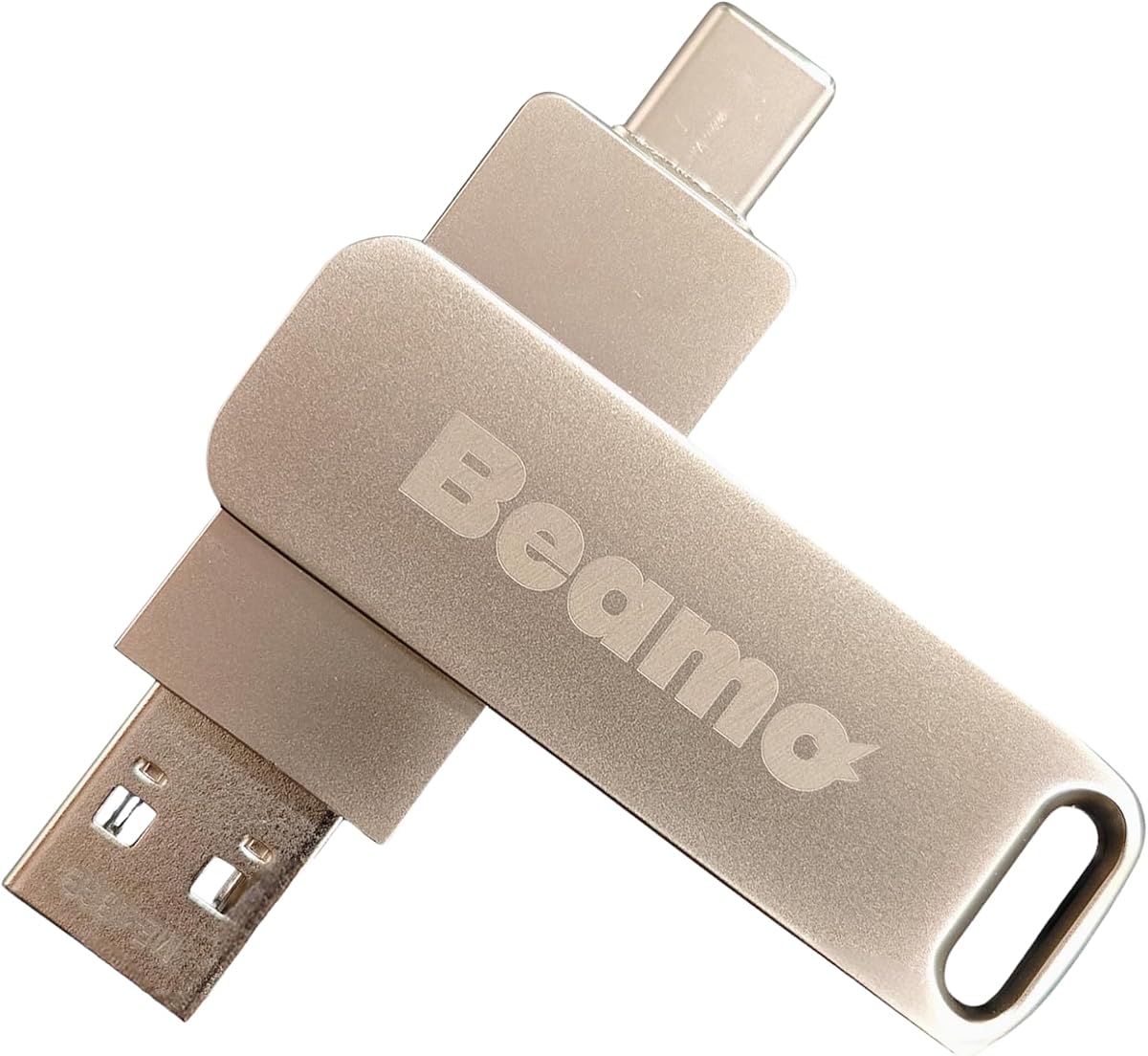


This 64GB drive stands out by offering sixteen distinct operating systems preloaded on a single device. It holds a solid rating from users who appreciate the breadth of choices available right out of the box. The inclusion of both Windows 11 and various Linux versions makes it a versatile tool for any tech enthusiast.
We may earn a commission when you buy through this link, at no additional cost to you.
The drive supports the latest iterations of popular distributions like Ubuntu, Kali, and Zorin ensuring you have access to current features. Users highlight the ease of use provided by the included video instructions and boot menu hot key lists. This level of preparation significantly reduces the friction usually associated with creating bootable media.
While the drive is highly compatible with most PCs, users must disable Secure Boot in their BIOS settings for UEFI modes to function correctly. This is a common requirement for many bootable drives but might confuse absolute beginners who are unfamiliar with system settings. It remains a minor hurdle compared to the value offered by the preloaded software suite.
Anyone seeking a comprehensive toolkit to test or install different operating systems will find this drive indispensable. It eliminates the need to download multiple ISO files manually and saves considerable time on technical setup. We recommend it as the top budget-friendly option for those who want maximum flexibility without a complex workflow.
With sixteen preloaded systems you can switch between security focused Kali lightweight Debian and user friendly Mint instantly.
Video guides and printed hot key lists make booting into the right environment straightforward even for first time users.
We may earn a commission when you buy through this link, at no additional cost to you.
This product is specifically curated for beginners who want to explore Linux without technical hurdles. It features nine different distributions including Ubuntu 24.04 LTS and Linux Mint designed for ease of use. The drive comes ready to run a variety of essential software applications that smooth out the transition from other operating systems.
We may earn a commission when you buy through this link, at no additional cost to you.
The included software suite covers productivity office tasks web browsing and multimedia needs right from the start. Users can try these systems on the USB before committing to a full installation on their hard drives. This approach protects existing data while allowing a risk-free evaluation of the chosen environment.
Compatibility is broad for standard PCs though it does not support Macs or Chromebooks which use different architectures. Users may need to enable USB boot in BIOS and disable Secure Boot for UEFI modes to work properly. A printed guide helps navigate these settings if users encounter black screens after selecting a distro.
We recommend this drive to anyone making their first switch to Linux who values simplicity and support. The prebundled tools ensure you can be productive immediately without hunting for additional software. It is an excellent entry point for those looking to adopt open source solutions without the learning curve.
Office tools and image editors are included so you can work or create content without needing internet access.
Try the operating system on the USB stick before installing to ensure hardware compatibility without risking your main drive.
We may earn a commission when you buy through this link, at no additional cost to you.
This drive offers a high-speed portable experience focused entirely on the elegant power of Linux Mint 22.3. It is designed for users who want a reliable operating system that works out of the box with minimal configuration needed. The Cinnamon desktop environment provides a familiar and polished interface that feels intuitive to switch from.
We may earn a commission when you buy through this link, at no additional cost to you.
Productivity is enhanced by the inclusion of LibreOffice which covers word processing spreadsheets and presentations seamlessly. The drive also supports graphic design tools like Blender and Gimp allowing for creative work directly from the USB. Users can run the system without modifying their hard drive which is perfect for testing compatibility.
While this drive specializes in one distribution it delivers a very refined experience within that ecosystem. The trade-off is less variety compared to multiboot options but the stability and ease of use make it worth it for Mint users. It serves well for troubleshooting PCs or reviving older machines with a modern feel.
We suggest this product for users who prefer a single well integrated solution over multiple options to choose from. It is particularly valuable for those needing a quick portable workstation for work or study. The drive is ready to run media and apps immediately making it a great daily driver on a stick.
Edit images and create 3D models with pre installed apps so you can produce high quality work on the go.
Run a full desktop environment safely without touching your internal storage or leaving traces on the host computer.
We may earn a commission when you buy through this link, at no additional cost to you.
This drive features Debian 13.7 one of the most reliable and trusted Linux operating systems in the world. It is engineered for legendary stability and privacy making it ideal for professionals and developers who need a robust environment. The lightweight nature ensures it runs fast on both modern and older hardware configurations.
We may earn a commission when you buy through this link, at no additional cost to you.
Security is a priority here with no tracking or bloatware included in the system build. Users appreciate the clean and customizable environment that allows for full control over packages and tools. Regular security updates keep the system safe while maintaining the freedom that open source provides.
While the system is stable it might be slightly harder to configure for absolute beginners compared to Mint or Ubuntu. The focus on control means you may need to manage some setup steps manually. However for those who value privacy and stability this trade-off is often acceptable for the benefits gained.
We recommend this drive for IT professionals students and anyone who values a secure and dependable operating system. It is perfect for testing servers or learning Linux administration without worrying about stability issues. The open source nature ensures you are not locked into any proprietary constraints.
No tracking or ads mean your data stays private and the system remains clean of unnecessary background processes.
Choose from thousands of packages to build a system tailored exactly to your specific computing needs and preferences.
We may earn a commission when you buy through this link, at no additional cost to you.
This 16GB drive provides a straightforward way to install or repair Linux Mint on compatible x86-64 PCs. It supports both a live environment for evaluation and a full installation mode for permanent use. The product is designed with a focus on utility and ease of access for general users.
We may earn a commission when you buy through this link, at no additional cost to you.
Users can start the live environment to test compatibility before making any changes to their main system. This is particularly useful for checking if hardware drivers and peripherals work correctly with the Linux Mint OS. It offers a safe method to explore the system without risking data loss.
It is important to note that this drive is not designed for Apple Silicon or ARM-based computers. Users should confirm their CPU architecture before purchase to ensure compatibility. Additionally backing up data before installation is a critical step to prevent accidental file erasure.
We suggest this product for anyone needing a reliable tool to install or fix Linux Mint systems. It is a practical choice for home users who want a dedicated drive for specific repairs or installations. The simplicity of the setup process makes it accessible for those with limited technical experience.
Use the live environment to troubleshoot boot issues or recover files from a problematic system quickly.
The installer guides you through partitioning and setup ensuring a smooth transition to Linux Mint on your hardware.
We may earn a commission when you buy through this link, at no additional cost to you.
This multiboot USB includes three versions of Linux Mint covering both modern 64bit and older 32bit systems. It is a versatile tool for supporting a wide range of hardware from old machines to new computers. The drive allows users to try different versions before committing to an installation.
We may earn a commission when you buy through this link, at no additional cost to you.
Linux Mint is known for working out of the box with essential apps for office web browsing and gaming. This product maintains that ease of use making it safe and comfortable for everyday computing tasks. Users find that it requires little maintenance and performs well even on older hardware.
One limitation is that Secure Boot must be disabled in the BIOS settings for UEFI booting to function correctly. This step is common for bootable drives but can be a hurdle for less technical users. The printed user guide helps resolve these issues if support is needed after purchase.
We recommend this drive for users who have older PCs that need a lightweight and stable Linux solution. It is a great resource for revitalizing computers that struggle with modern Windows versions. The variety of Mint versions ensures compatibility across different hardware generations.
Whether you have a 2010 laptop or a 2025 desktop there is a Mint version on this drive that will work.
No complex configuration is needed to get started with productivity tools and web browsing immediately after boot.
We may earn a commission when you buy through this link, at no additional cost to you.
This drive offers seven distinct systems including the rarely found Windows XP professional alongside modern Linux options. It is a unique tool for users who need to run legacy software or access older hardware environments. The inclusion of Clonezilla makes it particularly useful for disk cloning and system backup tasks.
We may earn a commission when you buy through this link, at no additional cost to you.
Users can run the operating systems directly from the USB drive without installation preserving their hard drive integrity. Video boot instructions help guide beginners through the process of selecting the right OS to run. This mix of legacy and modern tools provides a broad utility for technical support scenarios.
While the drive is functional it has a lower user rating compared to other options in this guide. This may be due to the complexity of managing multiple systems or specific compatibility issues on some machines. Disabling Secure Boot is often required for UEFI boot modes to function correctly.
We suggest this product for IT professionals who need to troubleshoot legacy systems or perform disk cloning. It is a niche tool that excels in specific maintenance tasks rather than general daily use. The presence of Windows XP makes it a rare find for those maintaining older infrastructure.
Use Clonezilla directly from the USB to backup entire disk images without needing extra software installation.
Run Windows XP or Bodhi Linux to test software or hardware that is no longer supported by modern OS versions.
We may earn a commission when you buy through this link, at no additional cost to you.
This drive features dual USB-A and USB-C connectivity ensuring it works with almost any desktop or laptop computer. It offers a fully customizable environment where users can add or replace ISO files as needed. The inclusion of gaming tools and Steam support adds significant value for entertainment use cases.
We may earn a commission when you buy through this link, at no additional cost to you.
The Cinnamon desktop provides a fast and secure experience that is familiar yet better than Windows or macOS. Users can enjoy multimedia apps and office tools without forced updates or account requirements. The hardware is built with high quality flash chips to ensure speed and longevity over time.
While it is focused on Linux Mint the ability to customize the drive sets it apart from fixed option. You can tailor the drive to your specific needs by swapping in different bootable ISOs easily. This flexibility makes it a great option for users who want a versatile and personal tool.
We recommend this product for those who value hardware quality and the freedom to modify their boot environment. It is suitable for reviving older PCs or using as a portable gaming and work station. Customer support is responsive within 24 hours to help with any setup issues.
Dual USB and USB-C ports mean you can plug this drive into any modern or old computer without adapters.
Pre configured gaming tools let you play games via Steam or Lutris without needing extra configuration steps.
We may earn a commission when you buy through this link, at no additional cost to you.
This multiboot USB features three Ubuntu based distributions including the popular 24.04 LTS and lightweight Lubuntu. It is designed to run on almost any brand of PC with support for both legacy BIOS and UEFI booting. The included versions are Long Term Support releases ensuring stability and long term updates.
We may earn a commission when you buy through this link, at no additional cost to you.
Most distributions come with common software like office tools web browsers and image editors ready to use. Lubuntu is specifically designed to target very old PC hardware making this drive versatile across different machine ages. Users can try the systems on the USB before installing to ensure everything works well.
Secure Boot settings may need to be adjusted in the BIOS for the drive to function properly on UEFI systems. This is a standard requirement for bootable media but might require some guidance if users are unfamiliar with BIOS settings. A printed guide is provided to help navigate these setup challenges.
We recommend this drive for users who prefer Ubuntu and want a reliable and flexible booting solution. It is particularly valuable for those needing a stable LTS environment for work or study. The variety ensures that even older hardware gets a modern and supported operating system option.
LTS versions mean you get security updates and support for years making the system reliable for important tasks.
Lubuntu offers a lightweight alternative for older computers ensuring smooth performance without demanding resources.
We may earn a commission when you buy through this link, at no additional cost to you.
This drive is designed for both desktop and server use offering a versatile platform for developers and professionals. It includes an Ubuntu Server installer for hosting networking and learning Linux administration at an advanced level. The system provides a clean interface that is similar to Windows or macOS but completely private.
We may earn a commission when you buy through this link, at no additional cost to you.
Users benefit from a fully customizable USB where they can add or upgrade bootable ISO files as needed. The drive supports both amd64 and arm64 installers making it compatible with a wide range of hardware architectures. This flexibility is particularly useful for professionals working with diverse computing environments.
While the system is robust setting up the server components may require some technical knowledge and effort. Users should be comfortable with command line tools and networking concepts to fully utilize the server features. However the privacy and stability of the OS make it worth the effort for technical users.
We recommend this product for professionals and students who need a reliable tool for server administration or learning. It is also great for reviving slow PCs with lightweight rescue environments to diagnose issues. The responsive customer support helps ensure any setup issues are resolved quickly.
The server installer allows you to learn networking and hosting without needing a physical dedicated server machine.
Whether you have a standard PC or an ARM based device this drive includes installers for your specific hardware.
We may earn a commission when you buy through this link, at no additional cost to you.
Choosing the right bootable Linux USB drive involves several factors beyond just storage capacity. This guide explores key elements to ensure compatibility and usability.
Consider whether you need a single distribution like Ubuntu or a multiboot option with several choices. Multiboot drives are often more versatile for testing different environments or fixing various issues. Single distro drives usually offer a more streamlined experience tailored to one ecosystem.
Prioritize multiboot drives if you want maximum flexibility without downloading ISOs separately.
Ensure the drive supports both legacy BIOS and UEFI boot modes for maximum compatibility across PCs. Most modern drives support both but verifying this prevents boot issues on older machines. Check for USB-C availability if you need to use it with newer laptops that lack standard ports.
Verify UEFI and Legacy support to ensure the drive works with both new and old systems.
Look for drives that include printed guides or video tutorials to help with the boot process. Beginners benefit significantly from step-by-step instructions that clarify BIOS settings like Secure Boot. Easy setup tools save time and reduce frustration during the initial installation or testing phase.
Choose products with clear instructions to simplify the boot and installation experience.
Select a capacity that matches your needs typically ranging from 16GB to 64GB for most distributions. Larger capacity allows for multiple ISOs or additional tools like cloning software to be included. Smaller drives are sufficient if you only need to test one or two specific distributions at a time.
Opt for 64GB if you need multiple ISOs or extra tools on the same drive.
Some drives prioritize privacy with no tracking software or bloatware included in the system images. Security focused distributions like Tails may be included for users who need enhanced privacy and anonymity. Check for features like Secure Boot compatibility to ensure the system boots securely without vulnerabilities.
Prioritize privacy-focused systems if security and anonymity are top concerns for your usage.
Look for Long Term Support (LTS) versions of distributions which offer extended updates and stability. LTS versions are ideal for users who need a reliable system for work or important tasks. Non-LTS versions might offer newer features but could have a shorter support lifecycle compared to LTS releases.
Choose LTS versions for better stability and longer support for your operating system needs.
Some drives allow users to add or replace ISO files providing a flexible environment for future updates. Customizability is valuable if you want to tailor the drive to your specific workflow or requirements. Fixed drives are easier to use initially but may lack flexibility as your needs change over time.
Select customizable drives if you plan to update or modify the boot options frequently.
Check if the product offers responsive customer support in case of boot issues or errors. Good support can resolve BIOS configuration problems or compatibility issues quickly. A helpful support team ensures you can get the drive working without needing to purchase a new unit.
Verify customer support availability to ensure help is accessible if you face technical issues.
To use the drive plug it into a USB port and restart your computer while pressing the boot menu key. Navigate to the boot menu using keys like F12 F9 or Esc depending on your motherboard manufacturer. Select the USB drive from the list to start loading the operating system automatically.
Care for your drive by ejecting it safely before unplugging to prevent data corruption. Avoid exposing the drive to extreme heat or moisture to protect the flash chips inside. Store it in a protective case to ensure it remains free from physical damage during transport.
Update the OS via the internal package manager once booted to ensure security and stability. If you need to install Linux permanently follow the installer prompts carefully to manage partitions. Back up your data before installing to prevent any accidental loss of files on your hard drive.
No these drives come preloaded with ISO files ready to boot immediately. You can run the operating systems directly without any prior download or installation steps. This saves you significant time and effort in setting up your bootable media.
Secure Boot must usually be disabled in the BIOS settings for Linux to boot from the USB drive. Enabling it often blocks unsigned operating systems or kernels from loading. Refer to your manufacturer instructions to turn off Secure Boot if you face boot errors.
Yes most drives allow you to install the OS permanently on your hard drive if you wish. You can test the system first to ensure compatibility before making a full installation. Always back up your existing data before proceeding with any installation process.
Most of these drives are designed for standard Intel or AMD based PCs and laptops. They generally do not support Macs or ARM-based devices which use different hardware architectures. Check product details to confirm compatibility with your specific device model before buying.
USB 3.0 and 3.2 drives offer faster data transfer speeds which improve boot times and performance. They are ideal if you want a smoother experience when running an OS from the drive. However older USB 2.0 ports will still work but at slower speeds.
Some drives allow customization where you can add replace or upgrade ISO files yourself. Check the product description to see if it supports modifying the drive content. Customization is great for adding specific tools or distributions beyond what is preloaded.
We have reviewed ten top options ranging from budget multiboot drives to specialized systems for professionals. Each pick offers unique strengths whether you need variety compatibility or specific features like privacy and speed. The right choice depends on your specific hardware and usage needs.
Prioritize distribution variety and ease of use if you are new to Linux bootable media. Look for drives that support both UEFI and legacy modes to ensure broad hardware compatibility. These factors will ensure a smooth and frustration-free experience when testing systems.
Prices and availability for these drives change regularly so always verify current status before buying. Checking user reviews and product details helps confirm that the drive meets your expectations. We hope this guide helps you find the perfect tool for your Linux journey.