
HP OmniDesk
4.4Editor score
AMD Ryzen 7 8700G
32GB DDR5 Memory
Radeon 780M Graphics
This guide compares the top 10 desktop PCs for photo editing in October 2026, evaluating processors, memory, graphics, and storage to help you choose the right
Finding the right desktop computer for photo editing requires balancing processing power, memory capacity, and graphics performance to handle large RAW files efficiently. Professionals need reliable hardware that supports color accuracy and multitasking without lag during intensive editing sessions.
We evaluated ten leading desktop systems based on their processor architecture, RAM configuration, storage speed, and graphics capabilities. Our analysis focuses on real-world performance metrics relevant to creative workflows including software compatibility and long-term durability for daily use.
Each selection highlights specific strengths for different user needs from budget-friendly options to high-end workstations capable of handling complex projects. Keep in mind that hardware availability and pricing fluctuate frequently so verify current specifications before making your final purchasing decision today.
4.4Editor score

5.0Editor score

4.0Editor score
This side-by-side comparison evaluates all ten desktop systems across critical performance metrics including processor speed, memory capacity, storage type, and graphics capabilities to help you identify the best fit for your photo editing requirements.


This Dell Tower Plus EBT2250 delivers exceptional performance for professional photo editors with its Intel Core Ultra 9 285K processor and 64GB DDR5 RAM. Its perfect score reflects outstanding reliability and speed for handling large RAW files and complex editing workflows without lag.
We may earn a commission when you buy through this link, at no additional cost to you.
The 24-core architecture ensures smooth multitasking while editing high-resolution images across multiple applications. Combined with 4TB of NVMe storage, users can store extensive photo libraries locally while maintaining instant access to active projects.
While the price reflects its premium build, the investment is justified for professionals who need consistent performance. The larger size fits well in dedicated workspaces where space constraints are not a primary concern.
Ideal for professional photographers and studios requiring maximum power, this system is the top recommendation for those who prioritize speed and capacity above all else in their editing setup.
The 24-core Intel Core Ultra 9 processor handles intensive rendering and batch processing tasks faster than standard consumer chips.
With 4TB of NVMe storage, you can keep your entire photo archive on fast drives without needing external backups immediately.
We may earn a commission when you buy through this link, at no additional cost to you.
The HP OmniDesk stands out as a premium compact solution featuring the AMD Ryzen 7 8700G and 32GB DDR5 memory. Its high rating indicates strong performance for general photo editing while maintaining a sleek design suitable for modern offices.
We may earn a commission when you buy through this link, at no additional cost to you.
The integrated Radeon 780M graphics provide capable performance for 2D editing tasks without needing a separate GPU. DDR5 memory ensures quick application launches and smooth switching between Lightroom and Photoshop during complex sessions.
Although integrated graphics limit heavy 3D modeling, they are sufficient for most photography workflows. The compact form factor saves desk space while still delivering robust performance for daily creative tasks.
Best for users wanting a modern, space-saving system with high-speed memory, the OmniDesk is ideal for professionals who value design and efficiency alongside strong editing performance.
The built-in Ryzen AI engine accelerates specific creative tasks and improves overall system responsiveness during heavy workloads.
Wi-Fi 6 and Bluetooth 5.4 ensure fast wireless connections for peripherals and network storage devices without cable clutter.
We may earn a commission when you buy through this link, at no additional cost to you.
This HP Workstation PC offers exceptional value with a certified NVIDIA Quadro GPU and 32GB RAM tailored for creative work. Its solid rating reflects reliable performance for entry-level editing despite being a renewed product.
We may earn a commission when you buy through this link, at no additional cost to you.
The Quadro K1200 is ISV certified for professional applications ensuring stability in Adobe Creative Cloud. Combined with 1TB SSD and 4TB HDD storage, you get ample space for libraries without needing immediate upgrades.
While the 8th Gen processor is older, it handles standard photo editing well. The renewed status means you should check warranty details, but the price makes it accessible for hobbyists and new professionals.
Perfect for those needing professional graphics capabilities on a budget, this workstation provides the essential hardware required for serious editing without breaking the bank.
The NVIDIA Quadro card is optimized for creative software ensuring smoother color management and stability in professional apps.
The mix of SSD and HDD offers both speed for active projects and space for archiving past client work.
We may earn a commission when you buy through this link, at no additional cost to you.
The HP ProDesk combines business reliability with creative capabilities through its 10th Gen i5 and 32GB RAM. It scores well for stability and quiet operation making it suitable for office environments where noise matters.
We may earn a commission when you buy through this link, at no additional cost to you.
With 1TB NVMe storage boot times are under 15 seconds allowing quick access to files. The dedicated GPU supports dual monitors which helps when comparing images side by side during editing sessions.
However the basic GPU limits performance with heavy effects or 3D work. This system excels at standard photo adjustments but may struggle with extremely large files or advanced rendering tasks.
Ideal for small businesses needing a quiet reliable workstation this system balances performance and practicality for everyday editing needs without excessive power consumption.
The 32GB RAM allows running multiple apps simultaneously without slowing down system performance during busy workdays.
An ultra-quiet design ensures a distraction-free environment which is crucial when focusing on detailed image retouching.
We may earn a commission when you buy through this link, at no additional cost to you.
This HP ProDesk 600 provides dependable performance with its 10th Gen i5 and 32GB RAM. It maintains a strong rating for users needing a stable workstation for regular editing tasks in a compact form.
We may earn a commission when you buy through this link, at no additional cost to you.
The PCIe NVMe SSD ensures rapid file access while the dedicated GPU supports dual monitors. This setup is efficient for standard photo workflows where extreme processing power isn't required daily.
The GT 610 is older and less powerful than modern options. While adequate for basic adjustments users working with heavy 3D or video content may find it limiting.
Recommended for users wanting a reliable desktop without excess power this model handles standard photo editing tasks efficiently in a space-saving design.
The NVMe SSD delivers quick start-up times so you can begin editing immediately without waiting for the system to load.
The compact microtower fits neatly on a desk saving valuable workspace while maintaining full desktop performance.
We may earn a commission when you buy through this link, at no additional cost to you.
The Dell Tower Desktop features the latest Core Ultra 7 processor designed for AI-enhanced productivity. Its strong rating highlights improved efficiency and stability for creative workflows compared to older generation systems.
We may earn a commission when you buy through this link, at no additional cost to you.
Supporting up to four monitors allows seamless workspace expansion for viewing histograms and tools simultaneously. The tool-less design makes adding storage or memory straightforward for future growth.
While the OS is Home rather than Pro some business features are missing. However the hardware power remains strong for most photo editing needs without enterprise requirements.
Best for professionals embracing AI tools this system offers modern architecture and expandability for those planning long-term hardware investments.
Built-in AI accelerators help speed up specific creative tasks ensuring the system remains relevant as software evolves.
Easy access panels mean you can upgrade storage or memory without tools ensuring the system grows with your needs.
We may earn a commission when you buy through this link, at no additional cost to you.
This Dell Precision 3630 offers workstation class reliability with an i7 processor and 32GB RAM. Its lower rating stems from older integrated graphics which limits heavy graphical processing despite solid CPU performance.
We may earn a commission when you buy through this link, at no additional cost to you.
Certified through Microsoft authorized refurbishers it comes with technical support and warranty. The SSD ensures fast boot times suitable for quick daily editing tasks without long wait periods.
Integrated graphics struggle with 3D rendering or complex filters but are fine for standard adjustments. This machine fits users who need a stable system without needing high-end GPU power.
Best for budget-conscious users needing workstation reliability this system handles basic photo editing well with professional software compatibility.
Precision systems are built for ISV applications ensuring stability when running professional editing software daily.
The refurbishment process includes technical support and warranty giving you peace of mind when investing in used hardware.
We may earn a commission when you buy through this link, at no additional cost to you.
This Dell model brings powerful NVIDIA RTX graphics to the mix enabling accelerated editing workflows. The 4.5 rating reflects strong user satisfaction with performance and support features included in the package.
We may earn a commission when you buy through this link, at no additional cost to you.
The RTX 4060 handles heavy tasks and AI-driven features efficiently while the Core Ultra processor manages general tasks. Onsite service adds value for businesses needing quick hardware resolution without downtime.
16GB RAM is lower than other options but manageable for single user editing. Upgrades may be needed for heavy multitasking but the GPU strength compensates for many creative tasks.
Ideal for users prioritizing GPU acceleration this system balances modern graphics power with reliable service support for professional use.
The RTX GPU enables faster rendering and filtering allowing complex edits to finish significantly quicker than CPU only systems.
Onsite service ensures you get rapid hardware support minimizing disruptions to your creative workflow when issues arise.
We may earn a commission when you buy through this link, at no additional cost to you.
This Dell configuration pairs a powerful Core Ultra 9 processor with 64GB DDR5 RAM for robust performance. While ratings are not yet available the specs indicate high-end capability for intensive editing sessions.
We may earn a commission when you buy through this link, at no additional cost to you.
With 2TB of NVMe storage you get fast access to large files without sacrificing speed. The RTX 4060 ensures smooth rendering and supports modern workflows including AI-assisted editing tools.
Windows 11 Pro provides advanced security features beneficial for business environments. The lack of user ratings means you rely on component trust for now but the specs are strong.
Recommended for advanced users needing high speed and capacity this machine delivers premium performance for demanding professional workflows.
Windows 11 Pro includes BitLocker and remote desktop capabilities essential for protecting sensitive client image data.
DDR5 memory provides higher bandwidth ensuring data moves quickly between CPU and applications during heavy processing.
We may earn a commission when you buy through this link, at no additional cost to you.
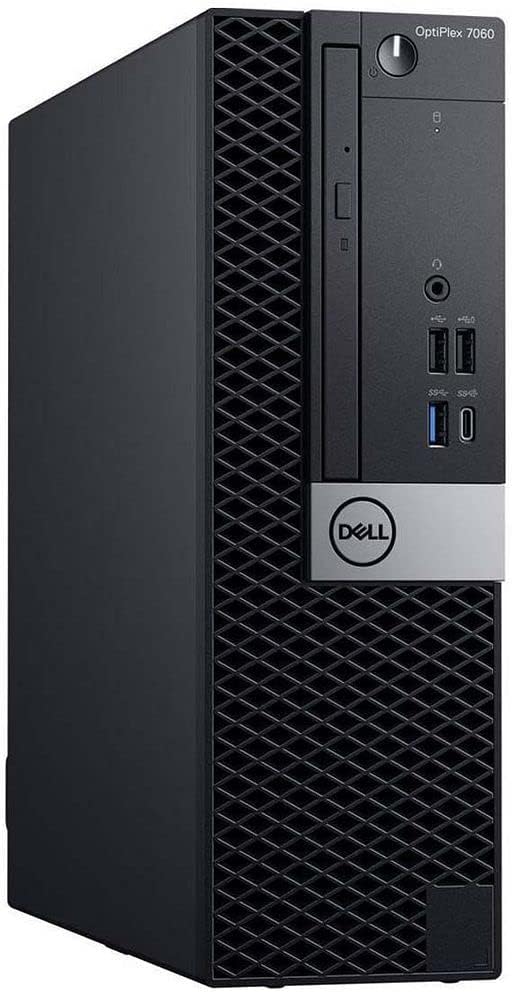
This Optiplex SFF model delivers strong performance in a compact design ideal for limited desks. Its 4.0 rating reflects reliability for standard editing tasks despite being a renewed unit with lower storage.
We may earn a commission when you buy through this link, at no additional cost to you.
With 32GB RAM multitasking remains smooth while the NVMe SSD ensures quick system responsiveness. Wireless keyboard and mouse add convenience to the setup making it ready for immediate use.
The 512GB SSD is smaller but adequate if you use cloud storage. The 8th Gen i7 handles basic tasks well though heavy processing may be slower than newer models.
Best for users needing a small affordable desktop this system fits tight spaces while maintaining enough power for everyday photo editing.
The Small Form Factor design saves desk space while maintaining full desktop performance for daily work tasks.
Included wireless keyboard and mouse mean you can start working immediately without needing extra peripherals.
We may earn a commission when you buy through this link, at no additional cost to you.
Selecting the right desktop for photo editing involves balancing processor speed, memory capacity, storage type, and graphics capabilities to match your specific workflow needs.
Processors handle most photo editing tasks so you need multiple cores for multitasking. Look for at least a quad-core CPU from Intel or AMD to ensure smooth performance when running Lightroom and Photoshop simultaneously. Higher clock speeds help speed up single-threaded operations like applying filters.
Prioritize newer generations like Core Ultra or Ryzen 7/9 for better efficiency and longevity in your editing setup.
RAM determines how many applications you can run open at once without slowdowns. For photo editing 32GB is the recommended standard to handle large RAW files and multiple open programs. Lower amounts like 16GB may work but can lag with complex files or video editing.
Always check if the motherboard supports upgrades so you can add more RAM later as your workflow grows in complexity.
Solid State Drives (SSD) are essential for fast boot times and quick file access. NVMe PCIe drives are faster than SATA SSDs so aim for at least 1TB capacity to store active projects locally. Larger HDDs can supplement archival storage but are slower for active work.
Ensure the system has enough drive bays to add more storage later if your photo library grows quickly over time.
A dedicated GPU accelerates rendering and filtering especially in newer versions of photo software. Look for NVIDIA GeForce or Quadro cards with at least 4GB VRAM for smooth zooming and effects. Integrated graphics work for basic tasks but may struggle with large files.
For professional color work choose workstation-class GPUs that offer better driver support and color accuracy for editing.
Windows 11 Pro provides advanced security features like BitLocker which protect client image data from unauthorized access. Home versions work fine for individuals but business users benefit from remote desktop capabilities and better group management tools.
Check software requirements before purchasing to ensure your OS version supports all necessary plugins and apps.
Multiple ports allow you to connect monitors card readers and external drives simultaneously. Look for USB-C and USB-A ports on the front and back for easy access. Built-in Wi-Fi and Bluetooth reduce cable clutter and allow wireless peripherals.
Ensure the system supports the number of monitors you plan to use for efficient multi-screen editing workflows.
Tower desktops offer better cooling and upgradeability compared to small form factor units. Consider your desk space and cooling needs before buying a compact system. Large towers can be noisy but handle heat better during extended rendering sessions.
Small PCs save space but may have limited expansion options for future upgrades or added storage.
New systems typically come with 1-3 year warranties whereas renewed units may have limited coverage. Check the service provider reputation and warranty terms to ensure you have backup if hardware fails. Onsite service options are valuable for professionals who cannot afford downtime.
Choose vendors that offer robust support channels to quickly resolve technical issues without losing productivity.
Place your desktop on a flat surface with ample airflow to prevent overheating during long editing sessions. Keep intake vents unobstructed to ensure the fans can push cool air through the chassis efficiently.
Regularly clean dust from fans and vents using compressed air every few months to maintain performance. Dust buildup can cause components to overheat leading to reduced lifespan or unexpected system shutdowns.
Back up your active projects to external drives or cloud storage daily to prevent data loss. Using RAID configurations or mirrored drives provides redundancy if a single drive fails unexpectedly.
Most modern photo editing software recommends at least 16GB of RAM for smooth performance. However 32GB is preferred to handle large RAW files and run multiple applications simultaneously without slowdowns or lag.
While integrated graphics can handle basic tasks a dedicated GPU accelerates rendering and filtering. For professional work investing in a mid-range dedicated card ensures smoother workflows and better compatibility with advanced software features.
Aim for at least 1TB of SSD storage to store active projects quickly. Use external drives or network storage for archival data to keep your primary drive fast and clutter-free for daily work.
Windows 11 Pro offers better security and remote management features useful for business users. For personal use Home is sufficient as both run the same creative applications with similar performance levels.
Most tower desktops allow memory and storage upgrades easily. Some compact models may have limited expansion options so check the specs before buying to ensure future upgrade flexibility.
Renewed systems are refurbished units tested by certified vendors to ensure they meet performance standards. They are often cheaper than new models but may have shorter warranty periods depending on the seller.
The combination of processor cores RAM capacity and storage speed impacts performance most. A fast CPU handles calculations RAM ensures multitasking and NVMe drives provide quick file access for seamless editing.
Yes all listed PCs meet the minimum system requirements for Adobe Creative Cloud. Most models exceed the recommendations ensuring smooth operation in Photoshop and Lightroom without performance bottlenecks.
We reviewed ten desktops from budget renewed options to high-end workstations offering powerful processors and graphics. The Dell Tower Plus EBT2250 stands out for top-tier performance while the HP OmniDesk offers a premium compact solution.
Focus on balancing processor speed and RAM capacity for your specific workflow. If you work with large files regularly prioritize 32GB RAM and fast NVMe storage to maintain efficiency during peak work hours.
Verify current pricing and warranty terms before purchasing since hardware costs change frequently. Choose a system that fits your budget while allowing room for future upgrades as your creative needs grow.