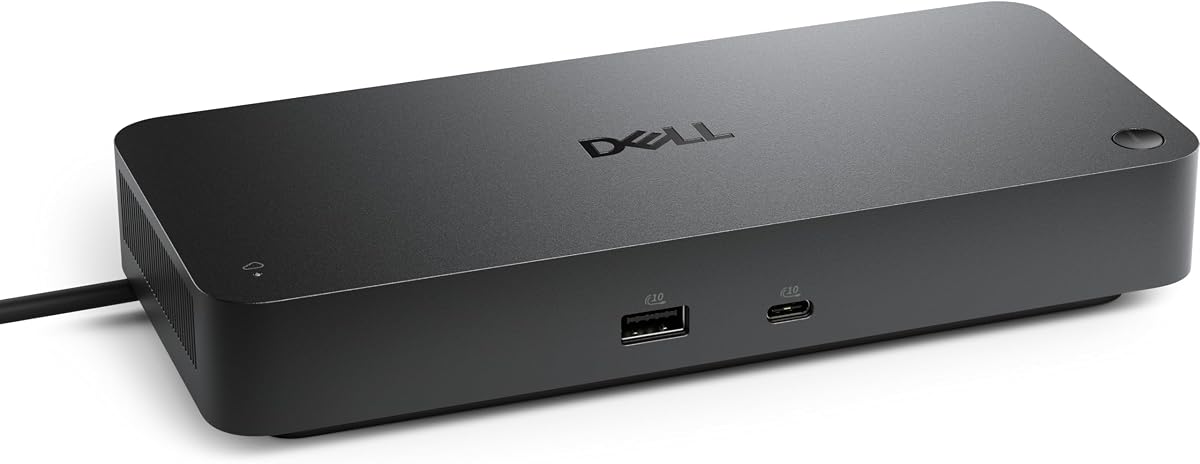
Dell Pro Thunderbolt 4 Smart Dock SD25TB4
4.2Editor score
Dual Thunderbolt 4 Ports
130W Charging Output
Up to Four 4K Displays
This guide compares the top 10 docking stations for Dell Pro 14 Plus laptops, evaluating connectivity, power delivery, display support, and build quality for
Finding the right docking station for your Dell Pro 14 Plus is essential for maximizing productivity and streamlining your workspace. A quality dock transforms a portable laptop into a full desktop replacement, offering extensive connectivity options for monitors, peripherals, and high-speed data transfer.
We analyzed ten leading models based on power delivery capabilities, display support, port variety, and build quality. Our comparison includes official Dell options and reputable third-party alternatives to help you find the perfect match for your specific workflow and budget.
Each pick highlights key strengths, potential trade-offs, and ideal use cases to guide your decision. Keep in mind that prices and availability can change frequently, so verify current details before making your final purchase to ensure you get the best value today.
4.2Editor score

4.5Editor score

4.3Editor score
The following table provides a side-by-side comparison of all ten models, highlighting key specifications such as power delivery, display capabilities, and unique features to help you quickly identify the best option for your needs.

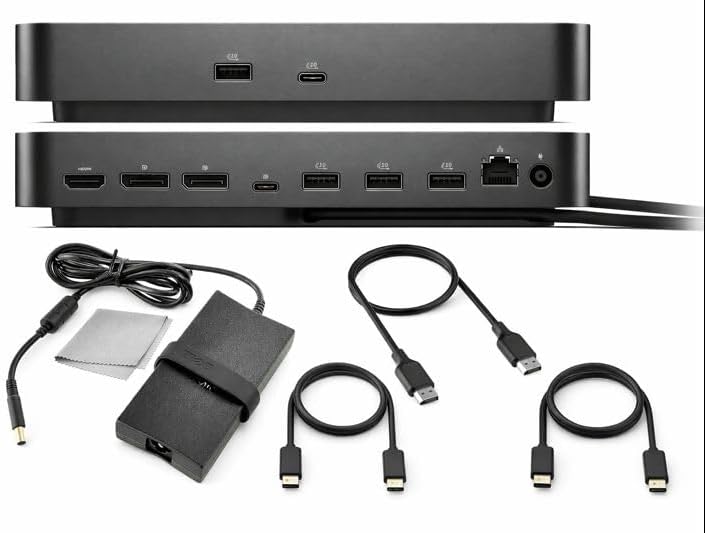


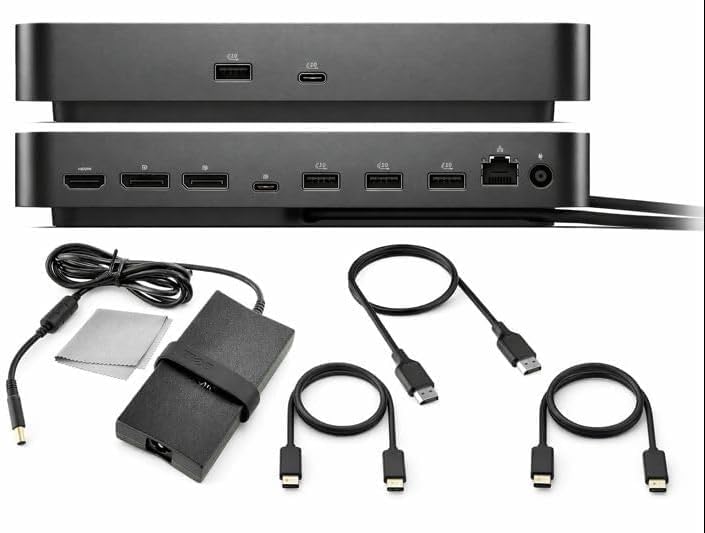

The Dell Pro Laptop Docking Station WD25 stands out as a top choice for Dell Pro 14 Plus users due to its robust power delivery and flexible display support. With a 4.5-star rating, it balances performance and manageability effectively.
We may earn a commission when you buy through this link, at no additional cost to you.
This dock supports up to 100W of power delivery, ensuring your laptop stays charged during heavy use. It allows for up to four high-resolution displays via HDMI and DisplayPort, making it ideal for multitasking professionals who need expanded screen real estate.
While it lacks Thunderbolt speeds found in premium models, the standard USB-C and Ethernet options provide sufficient speed for most business tasks. The ambidextrous cable design allows you to route connections left or right, reducing desk clutter.
For users invested in the Dell ecosystem, this dock offers seamless compatibility and remote management tools. Its sustainable construction also appeals to environmentally conscious buyers seeking reliable commercial-grade hardware.
The ambidextrous USB-C cable allows you to route the connection to either side of the dock, optimizing your desk layout and cable management.
IT administrators can manage this dock remotely via the Dell Device Management Console, ensuring fleetwide compliance and reducing user disruptions.
We may earn a commission when you buy through this link, at no additional cost to you.
The Dell Pro Smart Dock SD25 brings a unique angle to docking by offering Wi-Fi management without needing a direct PC connection. Its 4.5 rating reflects strong performance in security and manageability.
We may earn a commission when you buy through this link, at no additional cost to you.
This model enables IT teams to configure and update docks remotely, even if the connected device is off. It uses WPA3 encryption and hardware-based tamper resistance to protect sensitive data against physical or network attacks.
While it does not support the highest power outputs like Thunderbolt docks, it provides sufficient power for standard business laptops. The focus remains on security and streamlined management rather than raw throughput.
Ideal for corporate environments where centralized control is paramount, this dock ensures devices stay secure and up-to-date. Its use of recycled materials also aligns with modern sustainability goals.
Manage docks directly from the Dell Device Management Console via Wi-Fi, allowing updates and configuration without needing the connected laptop present.
Tamper-resistant hardware encryption safeguards sensitive information, ensuring that data remains protected even if the dock is physically accessed.
We may earn a commission when you buy through this link, at no additional cost to you.
For users requiring maximum speed and display capabilities, the Dell Pro Thunderbolt 4 Smart Dock offers premium features like 130W charging and quad-display support. It rates 4.2 stars for its advanced connectivity.
We may earn a commission when you buy through this link, at no additional cost to you.
Two Thunderbolt 4 ports allow for high-speed data transfer and daisy-chaining up to six devices. The dock supports up to four 4K displays using HDMI 2.1 and DP 1.4, making it perfect for creative professionals.
Security features like DMA protection and secure enclosure ensure enterprise-level safety. However, the complexity of configuring Wi-Fi management may be a hurdle for non-IT users.
If budget is not a constraint, this dock provides the best possible performance for future-proofing your setup. Its sustainability features also make it a responsible choice for high-end hardware.
Dual Thunderbolt 4 ports deliver ultra-fast speeds for data and video, enabling you to chain multiple high-performance devices seamlessly.
Support for up to four 4K monitors ensures you can manage complex workflows with multiple high-resolution screens simultaneously.
We may earn a commission when you buy through this link, at no additional cost to you.
The Anker Prime 14-in-1 dock offers exceptional value with a wide array of ports and high power output. With a 4.3 rating, it serves well for users needing extensive connectivity without spending on premium brands.
We may earn a commission when you buy through this link, at no additional cost to you.
It delivers up to 160W of total output, charging multiple devices simultaneously. The dual HDMI ports support up to 2K@60Hz, providing decent multitasking capability for budget-conscious professionals.
While it lacks Thunderbolt speeds, its USB-C and USB-A ports offer fast 10Gbps data transfer for most needs. The design is versatile, supporting Windows and ChromeOS effectively.
This dock is ideal for general office use where basic speed and broad port selection matter most. Its robust power delivery ensures your peripherals and laptop stay charged throughout the day.
With 11 ports including USB-C and USB-A, you can connect a wide variety of peripherals and external drives without additional adapters.
The dock supplies up to 160W total output, allowing you to charge your laptop and other devices simultaneously without performance loss.
We may earn a commission when you buy through this link, at no additional cost to you.
This bundle package for the Dell WD25 dock ensures you have everything needed to get started immediately. With a 3.9 rating, it offers convenience but may not outperform standalone units in raw specs.
We may earn a commission when you buy through this link, at no additional cost to you.
The kit includes high-power 100W adapter and essential cables like HDMI and DisplayPort. This eliminates the guesswork of finding compatible accessories separately.
A premium microfiber cleaning cloth is included, which adds a nice touch for maintaining screen clarity. However, the overall user satisfaction is slightly lower than the standalone dock.
Best for those who want a hassle-free setup with all accessories provided. The bundle ensures you have the correct power and data cables for dual monitor use right away.
Receive the dock with all necessary cables and an adapter, reducing setup time and ensuring you have the right tools from day one.
Includes a microfiber cleaning cloth to keep your devices free of dust, maintaining a professional appearance for your workspace.
We may earn a commission when you buy through this link, at no additional cost to you.
The Dell WD25Z stands out with its high 180W power supply, ensuring even the most demanding workstations receive adequate power. Its impressive 4.9 rating suggests exceptional reliability and performance.
We may earn a commission when you buy through this link, at no additional cost to you.
While specific features are less detailed in public descriptions, the high wattage indicates robust capability to drive multiple high-performance devices. It is designed for users who prioritize consistent power delivery.
This dock likely supports standard USB-C connectivity and is built to handle continuous heavy loads. The compact design helps save desk space while maintaining professional aesthetics.
If you need the highest possible power delivery for your Dell laptop and accessories, this is a strong contender. Its high rating reflects trust from users who rely on it daily.
Delivers up to 180W of power, ensuring your laptop and connected peripherals remain fully charged even under heavy usage loads.
Designed with a small footprint and strong build, making it ideal for professional workspaces where reliability and space efficiency matter.
We may earn a commission when you buy through this link, at no additional cost to you.
This version of the Dell WD25 includes essential cables and supports dual 4K displays. With a 4.5 rating, it balances performance and reliability for standard office workflows.
We may earn a commission when you buy through this link, at no additional cost to you.
It delivers 100W power, sufficient for most Dell laptops. The inclusion of HDMI, DisplayPort, and USB-C cables means you can start using it immediately without extra purchases.
A three-year warranty provides peace of mind for long-term use. While it lacks the quad-display capability of the higher-end model, dual 4K is enough for most professionals.
Best for users who want a straightforward, reliable solution with included accessories. Its comprehensive connectivity ensures seamless transition from laptop to desktop mode.
Includes HDMI, DisplayPort, and USB-C cables, ensuring you have the right connectors for your monitors and peripherals right out of the box.
Built-in 2.5GbE Ethernet provides faster and more stable internet connections than standard Gigabit ports for better productivity.
We may earn a commission when you buy through this link, at no additional cost to you.
The Smart Dock SD25 Bundle stands out with its 130W charging and perfect 5-star rating. It offers a mix of high power and essential accessories for a smooth experience.
We may earn a commission when you buy through this link, at no additional cost to you.
It supports up to four displays and includes HDMI, USB-C, and DisplayPort cables. This makes it versatile for both single and multi-monitor setups without additional purchases.
The inclusion of a cleaning cloth and robust Ethernet support adds value. It is well-designed for professionals who need reliable connectivity and quick setup.
Best for users who want high power and included accessories in one package. Its high rating confirms satisfaction with performance and build quality.
Receive a dock with 130W charging and all necessary cables, providing everything you need for a multi-monitor professional setup immediately.
With a perfect rating from users, this bundle delivers on its promises of reliability, power, and comprehensive connectivity for your devices.
We may earn a commission when you buy through this link, at no additional cost to you.
The WD25 Dell Pro Dock is a reliable choice with a 4.8 rating, known for delivering consistent power and connectivity. It focuses on core features that ensure daily productivity.
We may earn a commission when you buy through this link, at no additional cost to you.
With 100W power delivery and high-speed Ethernet, it handles typical work tasks effortlessly. The inclusion of USB-A ports ensures compatibility with older peripherals.
The three-year warranty offers substantial protection for your investment. While it may lack some advanced features, it delivers on the essentials required for a stable workstation.
Best for users seeking reliability and longevity. It is a practical solution for those who prioritize consistent performance over cutting-edge specifications.
Provides stable 100W power output to keep your laptop charged and connected devices functioning without interruptions during work hours.
Features a built-in 2.5GbE Ethernet port for fast and secure wired internet connections, ensuring reliable online performance.
We may earn a commission when you buy through this link, at no additional cost to you.
The Dell Pro Dock WD25 supports up to four WQHD displays, making it ideal for high-resolution multitasking. With a 4.4 rating, it offers strong connectivity for professional workflows.
We may earn a commission when you buy through this link, at no additional cost to you.
Its 100W charging ensures your laptop stays powered, while six USB ports allow for extensive peripheral connectivity. The ambidextrous cable design helps manage desk clutter effectively.
This dock is built with recycled materials and focuses on sustainability. While setting up four monitors requires compatible cables, the performance is robust.
Best for users who need a multi-screen workspace without stepping up to Thunderbolt. It offers a cost-effective way to expand your visual workspace with standard USB-C power.
Supports up to four WQHD displays, giving you ample screen real estate for complex tasks and data visualization projects.
The ambidextrous USB-C cable can be routed left or right, allowing you to optimize your desk layout and improve cable management.
We may earn a commission when you buy through this link, at no additional cost to you.
Selecting the right dock involves balancing power, connectivity, and display needs with your budget. This guide outlines the key factors to consider to ensure compatibility and performance.
Look for a dock that provides sufficient wattage to charge your Dell Pro 14 Plus. Most models offer up to 100W or 130W, which is enough for standard usage. Higher wattage ensures your laptop stays charged during intensive tasks.
Ensure the dock supports USB-C Power Delivery to work effectively with your laptop.
Determine how many external monitors you need. Some docks support dual displays while others support up to four high-resolution screens. Check if your preferred resolution matches HDMI or DisplayPort specifications.
Consider future-proofing by choosing a model that supports higher resolutions like 4K or WQHD.
Check the total count of USB-A and USB-C ports to connect all your peripherals. A good dock should have enough ports for keyboards, mice, and external drives without needing extra hubs.
Prioritize models with high-speed data transfer options if you work with large files.
Decide between standard USB-C and Thunderbolt options. Thunderbolt 4 offers faster speeds and better multi-monitor support but comes at a higher cost.
If you do not need extreme speeds, standard USB-C provides excellent value for most professionals.
For stable internet connections, look for docks with 2.5GbE Ethernet. Faster ethernet ensures smoother video calls and file transfers compared to standard Gigabit ports.
This feature is essential for remote work where internet stability impacts productivity.
Consider the physical size and material quality of the dock. A compact design saves desk space while durable materials ensure longevity.
Choose a model that fits your desk aesthetics and offers a robust build for daily use.
For enterprise users, remote management features allow easier IT control. Enterprise-grade encryption protects sensitive data from physical and network threats.
If security is a priority, prioritize models with hardware-based protection.
Look for warranties that cover at least three years to protect your investment. Reliable customer support ensures quick resolutions for any technical issues.
Always check the return policy to ensure satisfaction with your purchase.
To set up your dock, connect the power adapter first, then link your laptop via USB-C. Attach monitors and peripherals to the available ports before turning on your devices.
Ensure all cables are firmly plugged in to prevent connection drops. Route cables neatly to avoid tripping hazards and maintain a clean workspace environment.
Keep the dock away from direct sunlight and moisture. Periodically clean the ports with a soft, dry cloth to maintain optimal performance and longevity.
While the Dell Pro 14 Plus supports USB-C Power Delivery and video out, it may not have full Thunderbolt 4 support on all configurations. Check your specific model's specs before buying a Thunderbolt dock to ensure compatibility.
Yes, most USB-C docking stations work with any laptop supporting USB-C Power Delivery and Alt Mode. However, some Dell-specific management features may only work with Dell devices.
Depending on the model, you can connect up to four displays. For four monitors, ensure the dock supports HDMI 2.1 and DP 1.4 to achieve high resolutions like 4K.
2.5GbE Ethernet provides faster and more stable internet connections than standard Gigabit ports. This improves download speeds and reduces latency for remote work and large file transfers.
Most modern docks are plug-and-play. However, specific Dell features like remote management may require installing the Dell Device Console software for full functionality.
With proper care, a dock can last several years. High-quality models often come with warranties of three years or more, ensuring reliability for daily business use.
We reviewed ten top docking stations for the Dell Pro 14 Plus, highlighting models with varying power outputs and display capabilities. The Dell Pro WD25 and SD25TB4 stand out for performance, while the Anker Prime offers great value.
Prioritize power delivery and display support based on your daily tasks. If you need high-speed data, look for Thunderbolt options. For general office use, standard USB-C docks provide excellent reliability.
Prices and availability change often, so verify the latest details before purchasing. Investing in a quality dock ensures a seamless transition from portable to desktop productivity.