
Acer 4-in-1 USB C Hub
4.2Editor score
Dual 4K@60Hz support
100W power delivery
Compact 4-in-1 design
This guide compares the top 10 Dual HDMI Monitor Adapter options for extended displays, covering performance, compatibility, and value for work and entertainmen
Finding the right dual HDMI monitor adapter can transform your workspace by enabling multiple screens from a single port. Whether you need to extend your desktop or mirror content, choosing a reliable adapter ensures smooth video output and stable connections for productivity.
We evaluated ten highly rated adapters based on resolution support, port types, and compatibility across operating systems. Each product was analyzed for its ability to handle 4K visuals, power delivery needs, and ease of use without requiring complex driver installations or additional hardware.
Each pick highlights key strengths and limitations to help you match the adapter to your specific laptop or desktop setup. Please note that product availability and pricing can fluctuate over time, so verify current details before making your final purchase decision online.
4.2Editor score
4.5Editor score
4.1Editor score
The following table provides a side-by-side comparison of the top ten dual HDMI monitor adapters available this month. Review each option carefully to understand its specific capabilities, required ports, and optimal use cases for your setup.


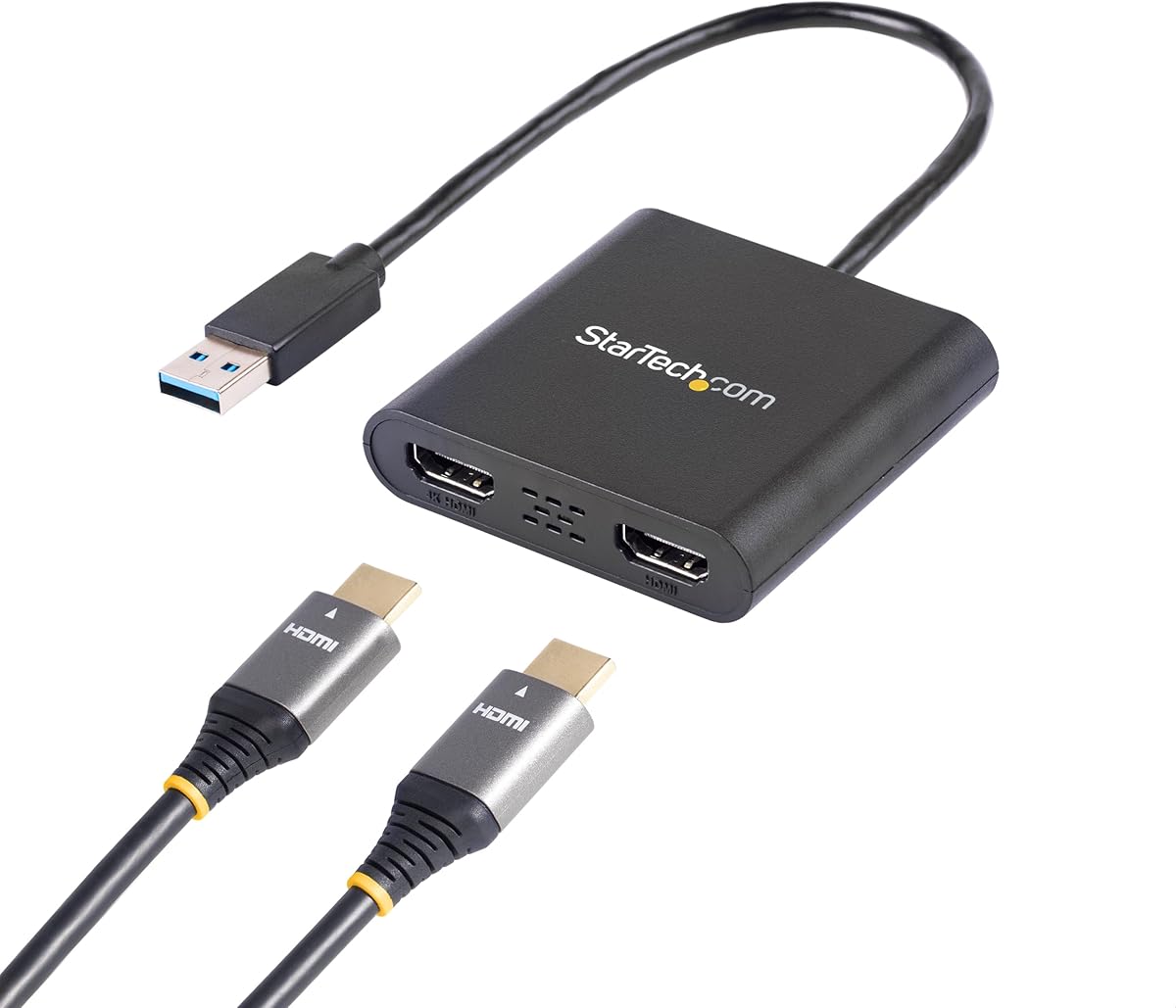
This adapter stands out as the top choice for Windows professionals needing a dependable dual monitor setup from a USB port. It earns a solid rating due to its stable performance and strong manufacturer support for IT environments.
We may earn a commission when you buy through this link, at no additional cost to you.
The adapter supports 4K at 30Hz on one monitor and 1080p at 60Hz on the other, which is ideal for multitasking. It connects via USB 3.0 and includes a compact cable design that keeps your workspace tidy.
While it requires administrator rights to install drivers and does not work with macOS, these limitations are acceptable for dedicated Windows workstations. The warranty coverage provides additional peace of mind for enterprise users.
If you run a Windows-based workstation and need a reliable, supported solution for dual monitors, this adapter is a top recommendation that delivers consistent results without unexpected glitches.
It is built specifically for Windows systems, ensuring full compatibility with X86, X64, and ARM platforms including Snapdragon Copilot+ PCs.
The product includes a three-year warranty and free lifetime technical assistance, which is crucial for IT professionals managing multiple devices.
We may earn a commission when you buy through this link, at no additional cost to you.
This budget-friendly hub delivers impressive features for its price, supporting dual 4K@60Hz displays and fast charging. It is an excellent entry point for users needing a multiport solution without breaking the bank.
We may earn a commission when you buy through this link, at no additional cost to you.
The 4-in-1 design includes dual HDMI ports, a USB-A port for data, and a 100W power delivery port. This setup allows you to charge your laptop while connecting two external monitors for an expanded workspace.
Its main limitation is the short cable length, which may restrict placement options depending on your laptop and monitor setup. Additionally, macOS users should note that only mirroring is supported on this adapter.
For those seeking an affordable adapter with high-resolution output and power delivery, this option offers strong value and versatility for home office or travel use cases.
It features a 100W power delivery port that can charge your device while using video output, plus a USB-A port for transferring files efficiently.
Both HDMI ports support 4K at 60Hz for smooth, crisp visuals, provided your laptop and monitors support HDMI 2.0 or higher.
We may earn a commission when you buy through this link, at no additional cost to you.
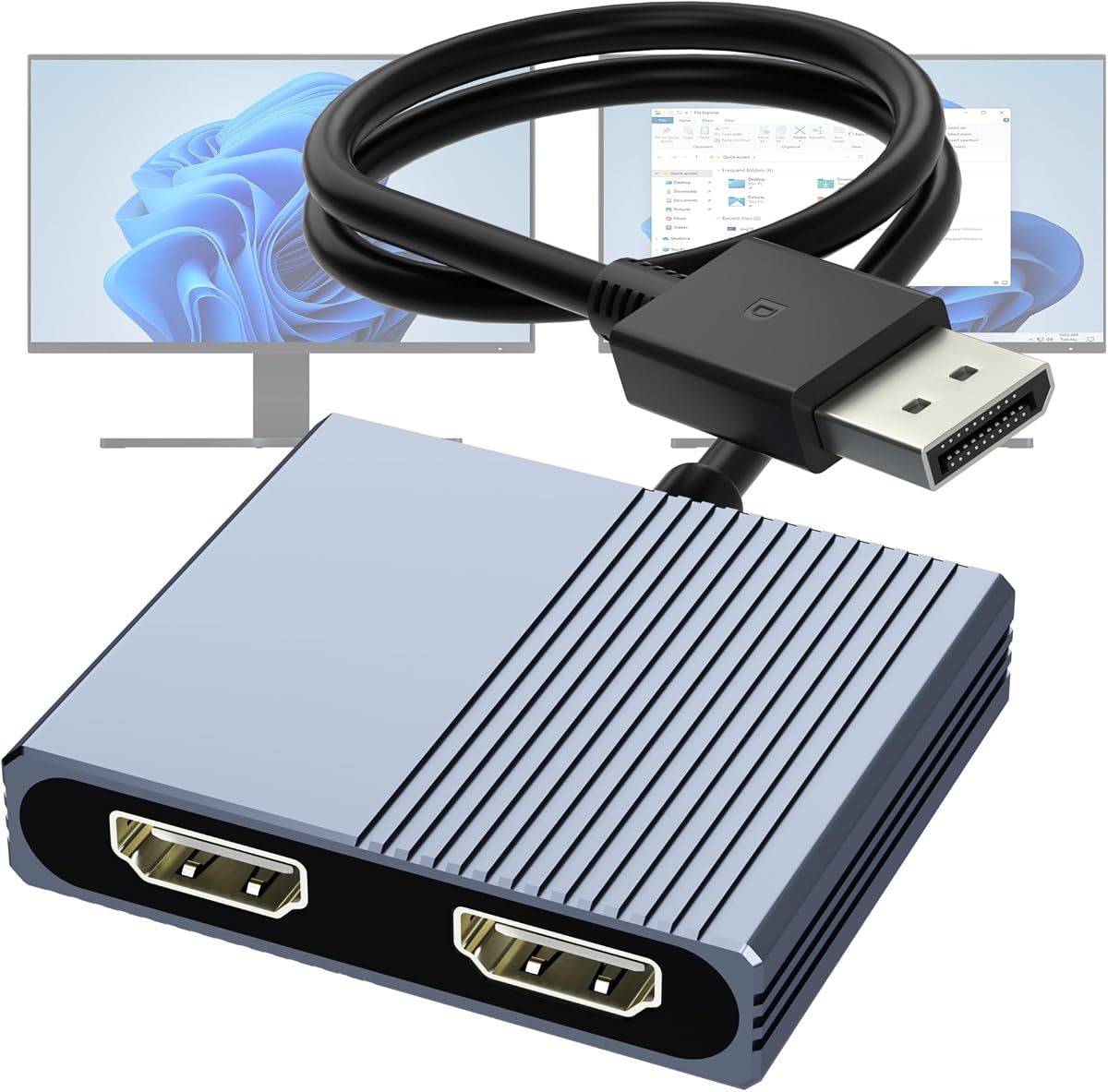
This adapter excels in performance with a dedicated graphics card, offering dual 4K@60Hz support via DisplayPort MST. Its premium build quality and lack of driver requirements make it a favorite for desktop users.
We may earn a commission when you buy through this link, at no additional cost to you.
The adapter connects via DisplayPort and splits the signal to two HDMI monitors, allowing extended or mirrored displays. It uses a built-in chip to manage the MST protocol efficiently for smooth multi-monitor workflows.
Users must ensure their computer supports DP1.4 and provides external power via the included USB cable, which adds a minor step to the setup. The design prioritizes signal stability over portability for stationary setups.
If you have a desktop or laptop with a DisplayPort and need high-resolution dual monitors without software hassle, this adapter delivers professional-grade performance and reliability.
It is designed for dedicated GPUs like NVIDIA and AMD, which offer the bandwidth needed for dual 4K@60Hz outputs reliably.
The housing is made from aluminum alloy with gold-plated ports, ensuring durability and efficient heat dissipation during long usage periods.
We may earn a commission when you buy through this link, at no additional cost to you.
This adapter offers a versatile solution for both Windows and macOS users who need extended displays from a USB connection. It supports high resolutions and provides solid support for productivity tasks.
We may earn a commission when you buy through this link, at no additional cost to you.
It includes a USB-C or USB 3.0 input and requires a driver download for full functionality. The resolution options include 1080p at 60Hz or 1440p, making it suitable for most office applications.
It is not recommended for gaming or protected content like Netflix due to HDCP limitations. However, for spreadsheets, documents, and general multitasking, it performs reliably without major issues.
If you switch between macOS and Windows and need a single adapter that works across platforms for productivity, this option offers broad compatibility and strong support.
While it requires installing a driver, this step unlocks full functionality and allows it to work with different operating systems including Chrome OS.
The adapter is optimized for apps like Google Docs and Office, ensuring smooth performance for daily work without video lag or glitches.
We may earn a commission when you buy through this link, at no additional cost to you.
This adapter provides a straightforward way to add dual monitors to a laptop using either USB-A or USB-C. It is designed to work well with modern Windows systems and includes flexible power options.
We may earn a commission when you buy through this link, at no additional cost to you.
It supports 4K at 30Hz and can extend or mirror your display across two monitors. The design includes a USB-C to USB-A adapter for compatibility with a wide range of laptop ports.
Users need an Intel i5 processor or higher for optimal performance, and drivers must be installed before use. This makes it less plug-and-play but reliable once configured.
If you have a powerful Windows laptop and need a reliable dual display setup for work, this adapter offers good resolution and flexible connectivity options.
The manufacturer recommends an Intel i5 or higher to ensure the system has enough processing power to handle multiple display outputs smoothly.
You can plug in via USB-A or USB-C directly, making it adaptable to older and newer laptops without needing extra dongles.
We may earn a commission when you buy through this link, at no additional cost to you.
This docking station transforms your laptop into a full desktop workstation with multiple ports. It stands out for its comprehensive connectivity and strong video performance on Windows systems.
We may earn a commission when you buy through this link, at no additional cost to you.
The 8-in-1 design includes dual HDMI ports, a 100W power delivery port, USB-A ports, and a card reader. This allows you to connect peripherals and charge your device all at once.
Mac users should note that only mirroring is supported on this device, as macOS does not support MST mode for extended displays. Windows users get full flexibility for extended dual monitors.
If you need a versatile hub for both work and media connections with fast charging, this docking station offers excellent value and feature density for your setup.
It combines video, power, and data ports into one unit, reducing the need for multiple dongles and keeping your desk organized and efficient.
The 100W PD port can charge most laptops while using the hub, and the SD card reader allows quick access to photos and files from cameras.
We may earn a commission when you buy through this link, at no additional cost to you.
This splitter is ideal for users who simply want to duplicate their screen across two displays without complex configurations. It works well for presentations or watching videos on multiple screens.
We may earn a commission when you buy through this link, at no additional cost to you.
It connects to any HDMI source and duplicates the video output to two displays. It supports up to 4K at 30Hz and ensures audio is synchronized across both outputs for a seamless experience.
Since it only mirrors the screen, you cannot extend your desktop or have different windows on each monitor. This makes it unsuitable for productivity tasks but perfect for media sharing.
If you need a quick, inexpensive way to show the same content on two screens like in a classroom or lobby, this splitter offers simplicity and reliable performance.
It works with almost any HDMI source like laptops, game consoles, or TV boxes, making it a versatile choice for home entertainment setups.
No software or drivers are needed to operate this device, allowing you to connect and start using it immediately without technical hurdles.
We may earn a commission when you buy through this link, at no additional cost to you.
This multiport adapter combines dual video outputs with charging and data transfer in a compact design. It is an excellent choice for travelers needing a complete solution on the go.
We may earn a commission when you buy through this link, at no additional cost to you.
It supports dual 4K at 60Hz on Windows and mirrors on macOS, ensuring smooth visuals for most tasks. The USB-A port allows for quick data transfers while the PD port keeps your laptop charged.
The adapter works best with Thunderbolt 3 or 4 ports to ensure full functionality for video and power. Users should confirm their laptop has the necessary ports before purchase.
If you want a single adapter for displays, charging, and storage access while traveling, this option offers a balanced feature set and reliable performance for modern laptops.
It combines HDMI video, USB data, and charging into one slim adapter, reducing the need to carry multiple cables and dongles in your bag.
The 100W PD port delivers up to 90W to your laptop, ensuring it stays powered even when using both external monitors and data ports.
We may earn a commission when you buy through this link, at no additional cost to you.
This adapter is a strong choice for desktop users with dedicated graphics cards that support DisplayPort 1.4. It enables dual high-resolution monitors without the need for extra drivers.
We may earn a commission when you buy through this link, at no additional cost to you.
It supports both extended and mirrored display modes on Windows and ensures smooth performance for multitasking. The durable aluminum housing helps dissipate heat during long sessions.
Mac users should note this adapter does not support extended mode on macOS due to MST limitations. It is best suited for Windows PCs with discrete GPUs for reliable output.
If you want a rugged, driver-free way to connect two 4K monitors to a PC, this adapter offers robust performance and a premium build for everyday use.
It is built to work directly with graphics cards like NVIDIA and AMD, ensuring maximum bandwidth and stability for high-resolution displays.
The adapter uses multi-layer shielding and gold-plated ports to maintain a stable signal, reducing the risk of flicker or dropout during use.
We may earn a commission when you buy through this link, at no additional cost to you.
This compact hub is ideal for users needing a portable dual monitor solution with charging capabilities. It balances performance with size to fit easily in a laptop bag.
We may earn a commission when you buy through this link, at no additional cost to you.
It offers dual HDMI 4K at 60Hz support along with 100W power delivery and additional USB ports for peripherals. This makes it versatile for both work and travel scenarios.
The USB ports operate at 2.0 speeds, which is sufficient for basic peripherals but not for high-speed transfers. Its small size means it may get warm during extended use.
If you want a small, affordable adapter that handles multiple monitors and keeps your laptop charged, this hub is a practical choice for daily mobility.
Despite its small size, it supports high-resolution dual video and provides enough power to charge your laptop while in use.
The three USB ports let you connect a keyboard, mouse, or flash drive simultaneously, expanding your laptop functionality without extra cables.
We may earn a commission when you buy through this link, at no additional cost to you.
Choosing the right dual HDMI monitor adapter depends on your laptop ports, operating system, and display requirements. This section outlines the key factors to consider before buying.
Check if your laptop has USB-A, USB-C, or DisplayPort outputs. Some adapters only work with specific ports, so matching them correctly ensures full functionality and reliable video output.
Always verify your laptop port supports video output, such as Thunderbolt or DisplayPort Alternate Mode, before purchasing a USB-C adapter.
Ensure the adapter supports your operating system. macOS often limits adapters to mirroring only, while Windows typically allows extended displays using MST technology for multi-monitor setups.
Read the product details carefully to confirm OS compatibility to avoid surprises like macOS mirroring limits or driver restrictions.
Determine if you need 4K at 60Hz or lower resolutions. High refresh rates provide smoother motion for video and design work, while 30Hz may be sufficient for static tasks like spreadsheets.
Prioritize adapters that support at least 1080p at 60Hz for clarity, aiming for 4K@60Hz if you work with detailed visuals.
Look for adapters with power delivery ports to keep your laptop charged while using external monitors. This is essential for mobile workflows where you cannot rely on a wall outlet.
Choose an adapter that supports 100W pass-through charging if you use a power-hungry laptop to ensure battery stability during work sessions.
Some adapters require driver installation for full functionality, which may not be possible on managed work devices. Others offer plug-and-play convenience for immediate setup without extra software.
If you are on a work laptop, prefer plug-and-play options or confirm your IT team allows driver installations to avoid access issues.
Short cables can limit placement options for your monitors and laptop. Ensure the included cable length suits your desk layout to maintain a clean and ergonomic workspace.
Consider buying a longer extension cable if the provided one is less than 30 centimeters to avoid cramped setups.
Materials like aluminum alloy improve durability and heat dissipation. A solid build reduces wear and tear from frequent plugging and unplugging over time.
Choose adapters with robust housings and gold-plated ports to ensure long-term stability and reliable signal transmission.
Affordable options may lack features like high refresh rates or power delivery. Balance your needs with cost by prioritizing must-have features for your daily workflow.
Set a budget based on your usage; if you need high performance, invest more, but for basic tasks, a lower-cost adapter may suffice.
Connect the adapter to your laptop's compatible port first. Then attach both HDMI monitors securely to the adapter ports. Ensure cables are snug to prevent signal drops or flickering during use.
Power on your laptop and monitors. If required, install the necessary drivers or software to enable extended displays. Configure display settings in your operating system to arrange monitor positions correctly.
Keep the adapter cool and clean to maintain performance. Avoid bending cables sharply or placing heavy objects on the adapter to prevent damage. Store in a protective case when traveling.
Yes, many adapters work with macOS, but most only support mirroring rather than extending displays. This is due to macOS limitations with MST technology used for extended screens on USB hubs. Check the product details to confirm support before buying.
No, some adapters are plug-and-play while others require drivers for full functionality. Products relying on MST often need drivers on Windows to enable extended displays. Always verify driver needs on the product page.
Mirroring shows the same image on both screens, while extending treats each screen as a separate workspace. Extending allows you to place different windows on each monitor for better multitasking efficiency.
Some adapters work with integrated graphics, but performance may be limited to lower resolutions or refresh rates. High-resolution dual outputs often benefit from a dedicated GPU for stability and speed.
Yes, many adapters include a power delivery port that allows charging while connected to monitors. Ensure the adapter supports your laptop's required wattage to avoid slow or inconsistent charging.
High-end adapters support 4K at 60Hz on both monitors if your system meets the requirements like DP1.4 or Thunderbolt. Cheaper options may support 4K at 30Hz instead.
We covered ten adapters that offer different strengths for various users. The StarTech adapter leads for Windows reliability while the Acer hub wins on budget and the DP adapter stands out for premium graphics performance.
Choose based on your most critical needs like resolution, power delivery, and OS compatibility. If you need extended displays on macOS or high refresh rates, select options that match those requirements closely.
Prices and availability change regularly so check current listings before buying. Verify your laptop ports and system requirements one last time to ensure the adapter fits your setup.