
Hearvo USB 3.0 HDMI KVM Switch for 2 Computers 1 Monitor, 4K@60Hz, S7232H
4.0Editor score
Includes wired remote switch
Features four USB 3.0 ports
Supports 4K@60Hz output
This guide compares the top KVM switches for 2026, evaluating video quality, USB support, switching methods, and compatibility to help you choose the right
Finding the right KVM switch can transform your workspace by allowing you to control multiple computers with a single set of peripherals. Whether you are a developer, gamer, or home office worker, a reliable switch saves time and reduces cable clutter.
We have carefully analyzed the leading models available this month to bring you a curated list of ten exceptional options. Our comparison focuses on resolution support, port variety, switching mechanisms, and overall build quality to ensure you get the best value.
Each selection below highlights specific strengths and ideal use cases for different users. Please note that product availability and pricing can change frequently, so we recommend verifying the latest details before making your final purchase decision.
4.0Editor score

3.9Editor score

4.5Editor score
The following table provides a side-by-side look at the key specifications and features of each model we reviewed. This overview helps you quickly identify which device aligns best with your specific hardware setup and workflow requirements.




This UGREEN KVM switch is designed for users who need to manage two computers across three monitors simultaneously. It stands out for its ability to handle ultra-high resolutions including 8K at 60Hz which is rare in this category.
We may earn a commission when you buy through this link, at no additional cost to you.
The device features two DisplayPort 1.4 ports and one HDMI 2.1 port allowing for flexible connections. It also includes a desktop controller for convenient switching outside your main work area making your desk cleaner.
While powerful it does require both computers to support triple-monitor output for full functionality. Users should ensure their PCs have the necessary ports before purchasing to avoid compatibility issues.
This switch is ideal for content creators and IT professionals who need to switch between workstations efficiently without sacrificing visual quality or desk space.
The switch supports up to 8K@60Hz and backward compatibility with various lower resolutions ensuring smooth performance across different display setups.
You can choose between button switching on the device or using the included desktop controller for remote access enhancing workflow efficiency.
We may earn a commission when you buy through this link, at no additional cost to you.
The Hearvo KVM switch offers exceptional value for users needing a simple two computer setup with a single monitor. It supports 4K resolution and includes a wired remote for easy access without cluttering your desk.
We may earn a commission when you buy through this link, at no additional cost to you.
Its four USB 3.0 ports provide fast data transfer speeds up to 5Gbps allowing you to share peripherals like printers and drives efficiently. The adaptive EDID feature ensures stable image transmission when switching devices.
While it lacks external power requirements which simplifies setup it may not support high power devices like external hard drives without sufficient host power. It is best suited for standard office peripherals.
This model is perfect for home offices or budget conscious users who prioritize ease of use and cost effectiveness over multi monitor capabilities.
With four USB 3.0 ports including one USB-C this switch allows versatile peripheral sharing with faster data speeds than older USB standards.
The included wired remote lets you place the switch out of sight keeping your workspace tidy while maintaining quick access to computer control.
We may earn a commission when you buy through this link, at no additional cost to you.
This GL.iNet device redefines KVM functionality by enabling remote access over Wi-Fi 6 making it ideal for managing computers across different locations. It features a built-in touchscreen for intuitive local control without extra software.
We may earn a commission when you buy through this link, at no additional cost to you.
The switch supports 4K video passthrough and two-way audio ensuring clear communication during remote meetings or IT support sessions. Built-in Tailscale provides secure encrypted connections between devices without extra configuration.
While it offers advanced features it is more expensive than traditional KVM switches and requires a network connection to function fully. It is best suited for teams needing remote disaster recovery or management.
This premium solution is perfect for professionals or businesses that need to access computers remotely while maintaining high visual quality and secure connectivity.
Access your computers via web or mobile apps without installing software on every device enabling flexible management from anywhere with internet access.
The device maintains 4K video and two-way audio streams ensuring that remote interactions are clear and professional for meetings or troubleshooting.
We may earn a commission when you buy through this link, at no additional cost to you.
This Displayport KVM switch is designed for users who need high refresh rate displays up to 4K at 144Hz making it suitable for gaming or fast-paced design work. It supports dual monitors and includes a desktop controller for remote access.
We may earn a commission when you buy through this link, at no additional cost to you.
The device features four USB 3.0 ports for fast data transfer and supports extended or copy modes for flexible display configurations. It requires an external power adapter to ensure stable performance with multiple devices.
While it offers excellent performance it does not include DP cables so you may need to purchase them separately. Additionally keyboard hotkey toggles are not supported which may limit quick switching options.
This model is best for gamers or designers who need high refresh rate support and dual monitor setups without compromising on peripheral sharing.
The switch supports up to 4K at 144Hz ensuring smooth visuals for gaming or motion intensive tasks without screen tearing or stuttering.
Users can choose between extended or copy modes to customize how their dual monitors display content across different computers.
We may earn a commission when you buy through this link, at no additional cost to you.
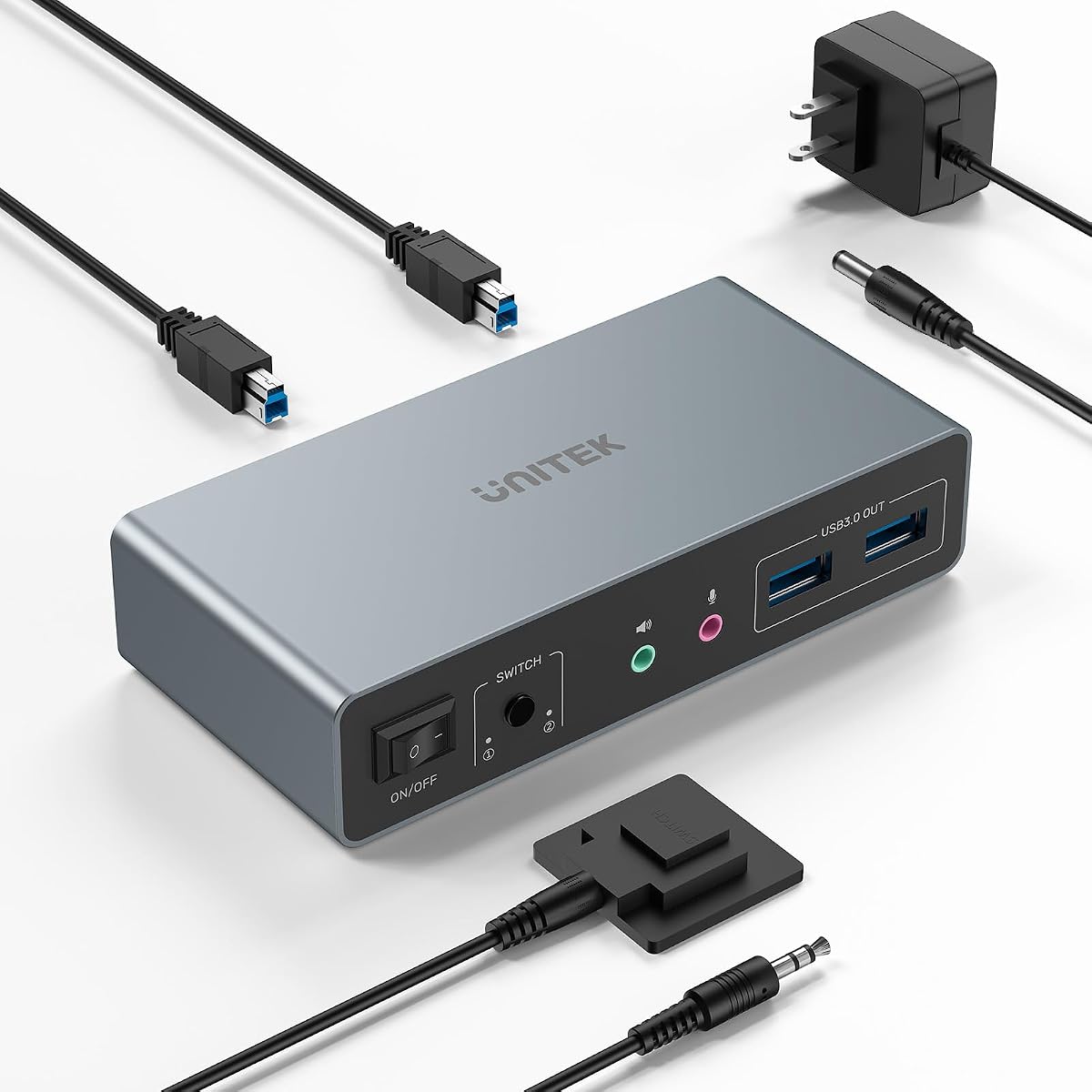
The Unitek KVM switch allows you to connect two computers to dual monitors using a mix of HDMI and DisplayPort connections. It supports 4K resolution and includes a power adapter for stable performance with multiple USB devices.
We may earn a commission when you buy through this link, at no additional cost to you.
With four USB-A ports this switch facilitates easy sharing of peripherals like keyboards mice and hard drives. It is compatible with a wide range of operating systems including Windows Linux and Mac.
Users should note that this device is designed for desktop hosts only and is not compatible with laptops. Proper cable setup is required for both video and USB connections to ensure full functionality.
This model is ideal for office users who need to manage dual monitors across two desktop computers with mixed port requirements and reliable USB sharing.
Supports both HDMI and DisplayPort inputs allowing flexibility when connecting computers with different video output ports.
The included power adapter ensures that USB devices receive stable power preventing disconnections when using high power peripherals.
We may earn a commission when you buy through this link, at no additional cost to you.
This HDMI KVM switch allows two computers to share three HDMI monitors and four USB 3.0 ports making it suitable for complex multi-monitor setups. It supports 4K resolution and includes a power adapter for stable USB device operation.
We may earn a commission when you buy through this link, at no additional cost to you.
The switch supports extend and duplicate display modes allowing you to customize how screens display content across computers. It features both panel buttons and an external wire controller for flexible switching options.
Users must ensure their computers support three screen displays and connect three HDMI cables per computer for proper output. It does not support keyboard hotkey toggles which may require physical button usage for switching.
This model is best for professionals who need to manage triple monitor HDMI setups across two computers without excessive cable clutter or manual reconnection.
Supports three monitors simultaneously for enhanced multitasking and productivity across two different computer systems.
Four USB 3.0 ports allow fast data transfer and shared access to keyboards mice and drives across both computers.
We may earn a commission when you buy through this link, at no additional cost to you.
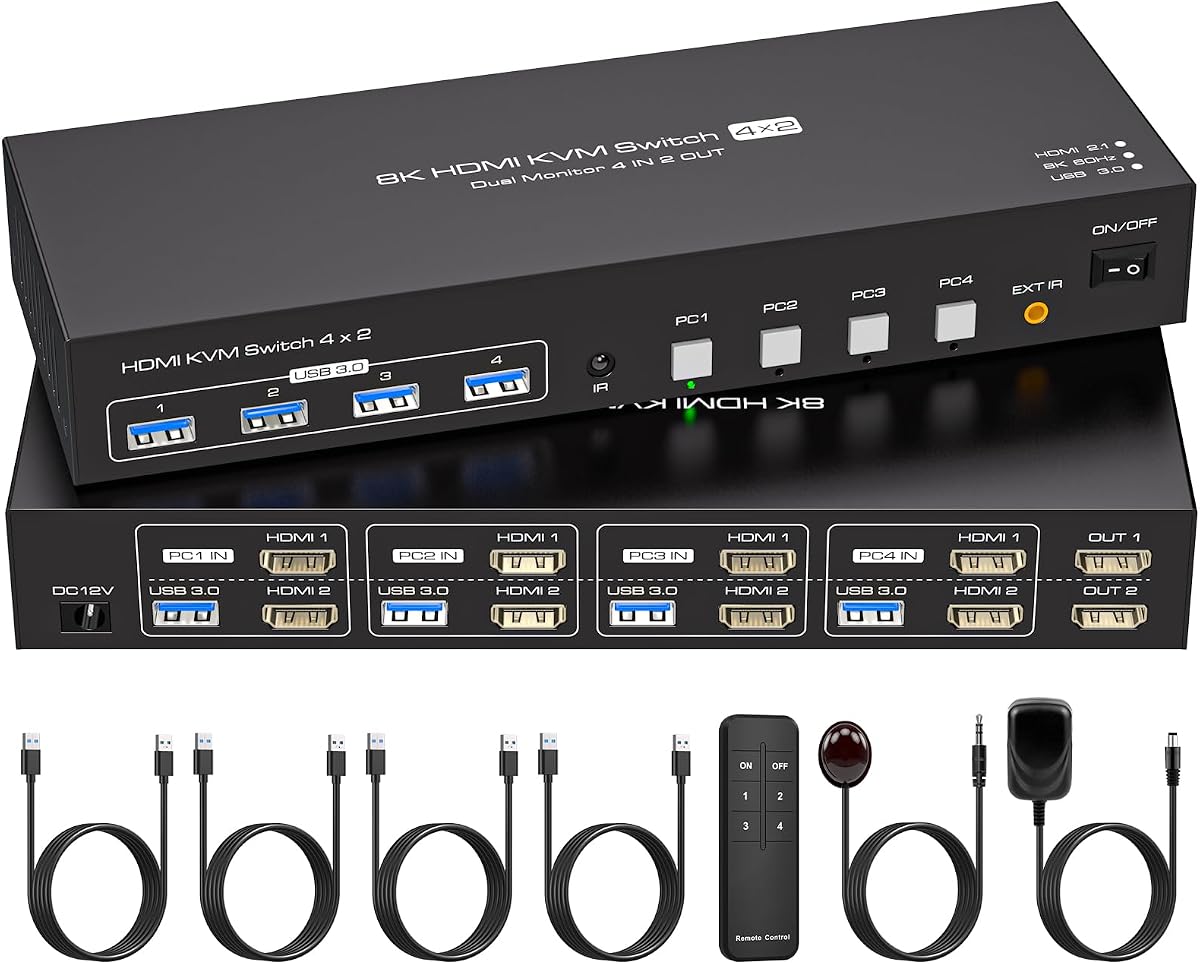
This KVM switch supports four computers sharing two monitors and four USB devices making it ideal for multi-PC workstations or IT environments. It features EDID emulation to maintain stable displays when switching between systems.
We may earn a commission when you buy through this link, at no additional cost to you.
The device supports up to 8K at 60Hz and includes an infrared remote control for convenient switching from a distance. It allows both duplicate and extended display modes for flexible screen management across computers.
Each computer requires two HDMI ports and each monitor needs one HDMI port for full functionality which may limit compatibility with some laptops. It requires an external power supply to ensure stable USB device performance.
This model is perfect for power users or professionals who need to manage four different computers efficiently without compromising on resolution or peripheral access.
Built-in EDID emulation ensures monitors are recognized quickly when switching preventing window rearrangement or display resets.
Supports up to 8K@60Hz for ultra high definition visuals across multiple displays and computer sources.
We may earn a commission when you buy through this link, at no additional cost to you.
This UGREEN HDMI KVM switch allows two computers to share two monitors and four USB 3.0 ports making it suitable for dual-monitor workstations. It supports 4K resolution and includes a desktop controller for convenient switching.
We may earn a commission when you buy through this link, at no additional cost to you.
The device supports extend and mirror modes for flexible display configurations and is compatible with various HDMI sources including consoles and media players. It requires a power adapter to ensure stable USB device operation.
Users should note that EDID emulation is not supported which may cause display resets when switching computers. It requires each computer to connect two HDMI cables for full dual monitor functionality.
This model is ideal for home offices or entertainment setups where dual HDMI monitor access and USB sharing are primary needs without complex setup requirements.
Works with computers consoles and media players allowing versatile use across gaming and productivity environments.
Four USB 3.0 ports enable fast data transfer and shared peripheral access across both connected computers.
We may earn a commission when you buy through this link, at no additional cost to you.
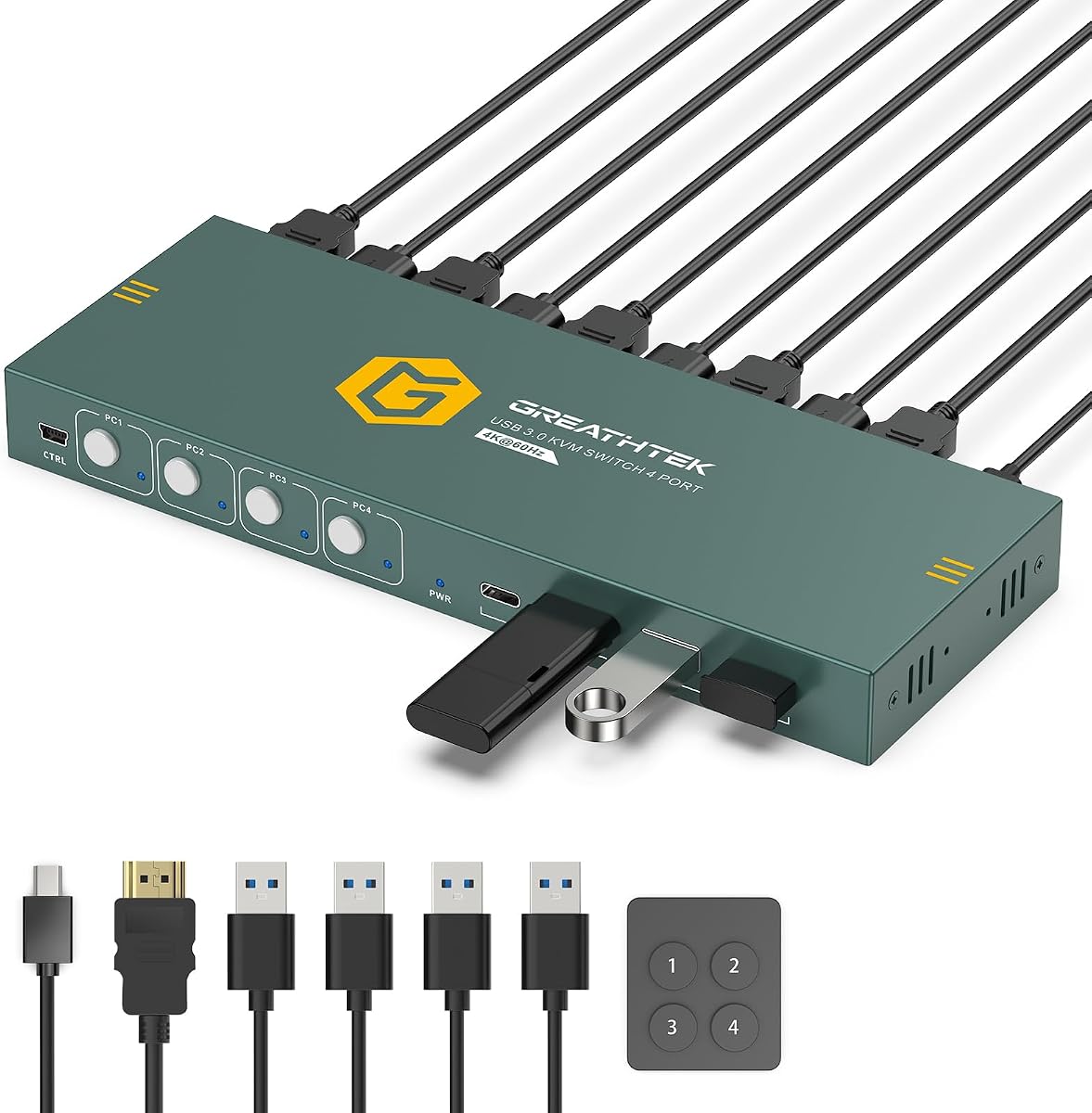
This KVM switch allows you to control four computers with one monitor and keyboard using one switch eliminating cable swapping in multi-PC workspaces. It supports 4K resolution and includes a wired remote for quick access.
We may earn a commission when you buy through this link, at no additional cost to you.
The device features four USB 3.0 ports for fast data transfer and supports adaptive EDID to automatically match resolution settings when switching computers. LED indicators clearly show which computer is active reducing confusion.
It requires each computer to connect via HDMI and USB cables and does not support hotkey switching which may require using front panel buttons or remote. It is ideal for test benches or shared workstations.
This model is perfect for environments where multiple computers need to be accessed efficiently from a single station without excessive hardware duplication.
Automatically detects connected displays and matches resolution settings when switching ensuring smooth transitions between computers.
Reduces cable clutter in multi-computer setups allowing organized switching between four different systems efficiently.
We may earn a commission when you buy through this link, at no additional cost to you.
This KVM switch allows two computers to share a single monitor and mouse keyboard with a simple button press. It supports 4K resolution and includes a desktop controller for hiding the switch keeping your workspace clean.
We may earn a commission when you buy through this link, at no additional cost to you.
The device uses USB 2.0 ports which are sufficient for keyboards and mice but not for high speed data devices. It does not require external power making it easy to set up without additional cables.
Users should ensure their computers and monitors have HDMI ports and avoid conversion adapters which may cause unstable transmission. It is not recommended for Mac devices due to compatibility reasons.
This model is ideal for users who need a basic and affordable solution to switch between two computers without complex configuration or power requirements.
No drivers required and no external power needed allowing quick setup and immediate use across two computers.
The included wired controller lets you place the switch out of sight maintaining a tidy workspace while staying accessible.
We may earn a commission when you buy through this link, at no additional cost to you.
Selecting the right KVM switch depends on your specific setup needs and hardware capabilities. This guide outlines key factors to consider to ensure compatibility and optimal performance.
Determine how many monitors you need to manage simultaneously. Some switches support single monitor setups while others allow dual or triple configurations. Ensure the switch matches your display count to avoid compatibility issues.
Choose a switch that supports your desired number of monitors for seamless multi-tasking.
Check the maximum resolution and refresh rate the switch supports to match your monitor capabilities. Higher refresh rates are crucial for gaming or smooth video playback while high resolution supports detailed work.
Select a switch that supports your monitors maximum resolution and refresh rate for optimal visual quality.
Identify the video ports available on your computers and monitors such as HDMI DisplayPort or USB-C. Ensure the KVM switch has matching inputs and outputs to connect all devices without adapters.
Verify that the switch has compatible connection types for your computers and monitors.
Count how many USB peripherals you need to share between computers including keyboards mice printers and drives. Switches typically offer two to four USB ports depending on the model and price.
Choose a switch with enough USB ports to connect all your shared peripherals.
Decide how you want to switch between computers. Options include front panel buttons desktop controllers or remote controls. Some models also support hotkeys for quicker access without physical interaction.
Pick a switching method that fits your workflow and desk setup for convenience.
Some KVM switches require external power adapters to ensure stable performance especially when sharing USB devices that need more power. Others run solely on power from the connected computers.
Consider whether the switch requires external power to avoid disconnection issues with USB peripherals.
Ensure the switch is compatible with your operating system such as Windows macOS or Linux. Most modern switches are plug-and-play but some features may depend on driver support.
Verify OS compatibility to ensure full functionality across your devices.
Look for switches with durable materials like aluminum housing for better heat dissipation and longevity. Check the warranty period and customer support options in case of technical issues.
Invest in a well-built switch with reliable support to protect your investment.
Begin by connecting your computers video and USB cables to the input ports on the KVM switch. Ensure each device is securely plugged in before connecting the monitor and shared peripherals to the output ports.
If your switch requires external power connect the adapter to a power source and the switch. Turn on all connected computers and verify that the displays and peripherals function correctly across both systems.
Clean the switch regularly with a dry cloth to prevent dust buildup. Avoid exposing it to moisture or extreme temperatures to maintain performance and extend its lifespan.
A KVM switch allows you to control multiple computers using a single set of peripherals like a keyboard mouse and monitor. This reduces clutter and simplifies workflow when managing more than one system.
Most modern KVM switches are compatible with Windows macOS and Linux. However you should check specific product details to ensure full support for any specialized operating systems you use.
Yes many KVM switches support dual or triple monitor setups. Ensure the switch explicitly supports your desired number of displays before purchasing to avoid compatibility issues.
Screen flicker can occur due to incompatible resolutions loose cable connections or insufficient power. Verify that your cables are properly connected and the switch supports your monitor settings.
Most KVM switches are plug-and-play requiring no driver installation. Simply connect your devices and power on the switch to start using it immediately across your computers.
Some KVM switches support HDMI devices including gaming consoles. Check the product specifications to ensure compatibility with consoles like PlayStation or Xbox for shared monitor use.
We have reviewed ten top KVM switches ranging from budget options to premium remote access models. Each offers unique features tailored to different needs whether you require triple monitor support or multi-computer access.
Prioritize compatibility with your existing hardware and desired switching methods when selecting a model. Ensuring your setup supports the required ports and resolution will prevent frustration after purchase.
Remember that availability and features can change so verify current product details before buying. Choosing the right KVM switch will streamline your workflow and enhance your computing experience significantly.